Start with one working session
Choose an ordinary task and lay out only what it needs: a laptop or keyboard, pointing device, display, notebook and any reference material. Put each item where you would actually use it. A stack of closed equipment does not show the surface occupied during a working session. Keep items you use only occasionally on a separate list.
Move through the task in order. Notice whether you have to shift the keyboard every time you open a notebook, whether a monitor base occupies writing space and whether your normal mouse movement reaches the proposed edge. These conflicts are more useful purchasing information than a count of devices.
Compare usable space, not the advertised outline
Draw the occupied layout on paper and measure its outer boundary. Include the space behind connectors and any equipment that extends beyond its base. Compare this outline with the usable desktop. Supports, raised shelves, curved edges and built-in storage can change which parts of the overall dimensions are available for work.
For a laptop-only arrangement, check whether the routine genuinely stays laptop-only or also involves an external keyboard, stand or paperwork. For a monitor setup, include the complete base and its cable connections. Do not assume that the screen width describes the desk space required by the equipment.
Decide what belongs off the desktop
Use nearby storage for items you retrieve occasionally, provided you can still access them without interrupting the workstation. Do not solve a crowded top by filling the space your chair or legs need. A proposed monitor arm also needs confirmation of clamp clearance, surface construction and the equipment requirements; it is not automatically compatible with every desk.
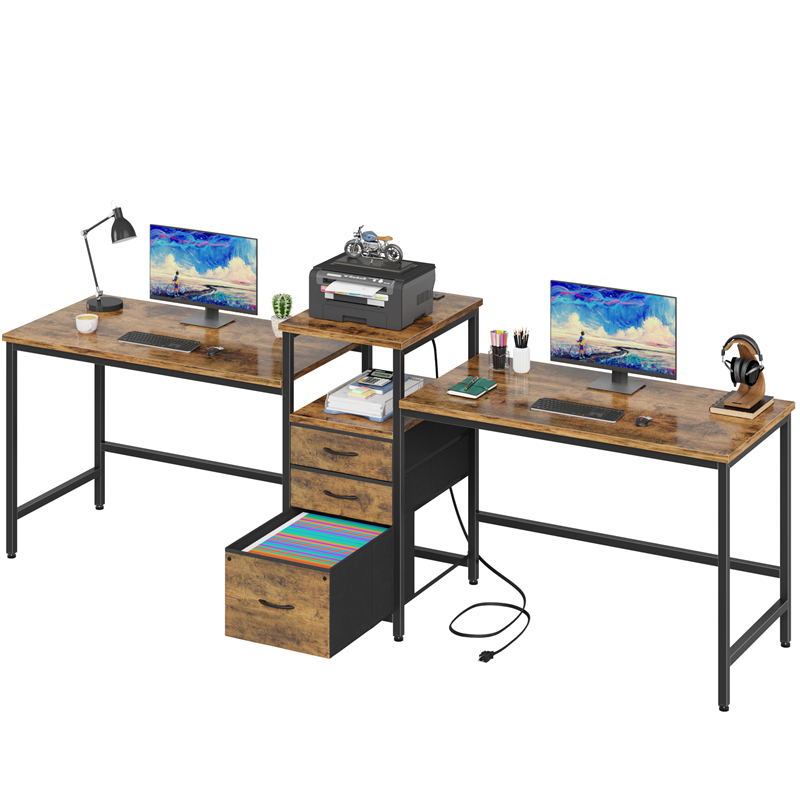
If two people will share the surface, repeat the outline exercise for each person and test the overlapping routes. Different schedules may make a shared layout workable, while simultaneous calls or large equipment can make separate working positions more useful. Treat these as routine decisions, not promises attached to a model name.
Turn the layout into an enquiry
Send the seller your required working outline and ask for the exact desktop dimensions, under-desk obstructions and applicable load information. The D2007 Double Table Tiger Wood listing is a product reference, not evidence that a particular pair of setups will fit. Keep unconfirmed details separate from measurements you have made yourself.
Once the information arrives, compare it with the outline and test chair movement separately. If the answer leaves a critical dimension unresolved, keep the fit decision open. Do not replace a missing specification with an estimate from the photograph.
Related product information
D2007- Double Table Tiger Wood
Who this helps
You are choosing a desk for a home workspace and need to know whether your everyday equipment can share its usable surface.
How to make the choice
Choose around the equipment you use at the same time. Keep frequently used items within your tested reach; move occasional items to separate storage rather than buying from width alone.
Information behind this guide
This is a general layout method. The linked D2007 listing identifies a product, but its name does not establish usable depth, load capacity or monitor-arm compatibility.
Your decision checklist
- List the equipment used together during one ordinary task.
- Draw the complete working outline, including bases and connectors.
- Identify items that can move to accessible nearby storage.
- Request usable dimensions and any required mounting compatibility.
Related questions
Does a wider desk always provide more usable workspace?
Not necessarily. Compare usable depth, supports and built-in features with the working outline. Extra width may not solve a conflict between a monitor base and writing space.
Should I plan for equipment I might buy later?
Include a future item only when its requirements are known well enough to test the layout. Otherwise record it as an unresolved requirement instead of guessing its footprint.